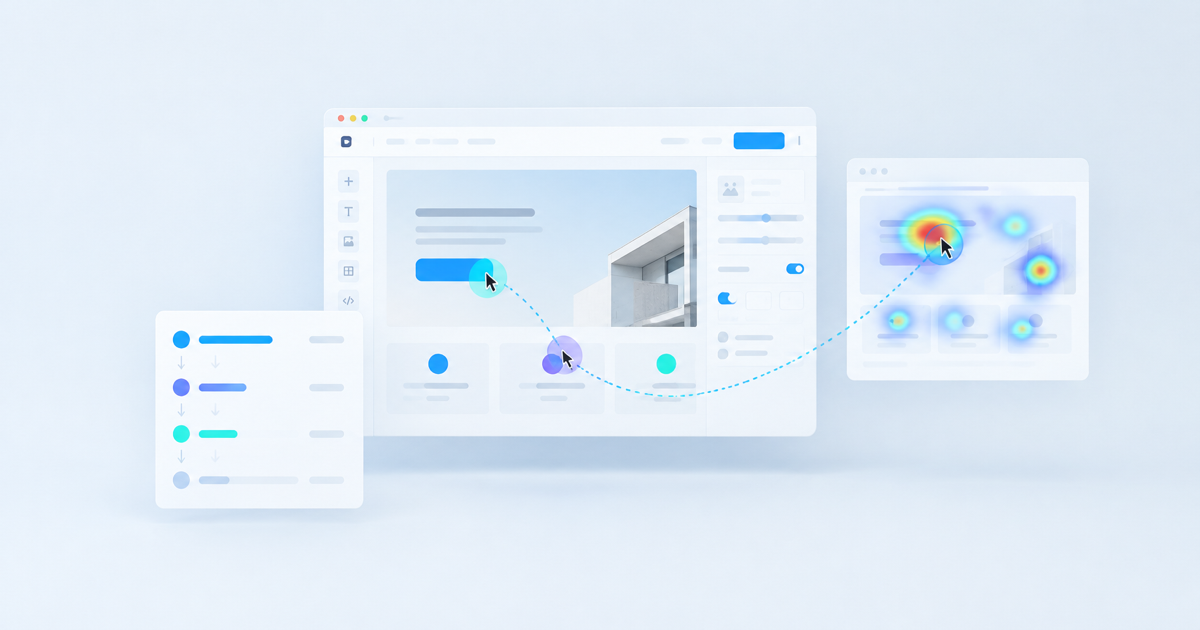

Framer makes building a beautiful website fast, but it does not tell you what happens after someone lands on it. You get a polished site in an afternoon and then silence: no idea where visitors go, where they stall, or why they leave without booking a call or signing up. If you are running a product site, portfolio, or landing page on Framer, here is how to actually see what your visitors are doing, without writing a line of code.
Why Framer sites are analytics blind spots
Framer is built for designers who want a CMS-grade site without a developer. That strength becomes a gap when it comes to measurement. Framer ships with light built-in page view counts, but nothing close to session replay, heatmaps, or funnel tracking. You can see that 400 people visited your pricing page last week. You cannot see whether they scrolled past the pricing table, hovered over the FAQ, or closed the tab in frustration halfway through your signup form.
For a marketing site this might not matter much. For a SaaS landing page, a waitlist, or a product funnel built in Framer, it matters a lot. Every visitor who leaves without converting is a clue you are not collecting.
What you actually need to track
Most Framer sites exist to do one of three jobs: get a signup, book a demo, or sell a product directly. Whichever it is, the questions worth answering are the same:
- Where do visitors scroll to, and where do they stop reading?
- Which buttons and links get clicked, and which ones get ignored?
- Where does the signup or contact form lose people?
- Do visitors from ads behave differently than visitors from organic search?
None of these require a data warehouse. They need a script that watches real sessions and turns them into something you can look at.
Adding real analytics to a Framer site
Framer supports custom code injection in the site settings under the Custom Code panel, which is the easiest way to add a third-party analytics script without touching the page builder. You paste one script tag into the head section, and it loads on every page of the published site, including CMS-driven pages.
This is where a tool like LeadFnF fits naturally. It is a single, privacy-first script, under 3KB, that captures session replays and heatmaps automatically once it is dropped into Framer's custom code field. There is no visual tagging step and no event plan to design before you get useful data. You publish the script, and from that point on you can watch real visitor sessions: where the cursor moves, what gets clicked, and where someone gives up.
The fastest way to understand a landing page is to watch five real people try to use it, not to guess from a traffic chart.
Because the script runs client-side and respects visitor privacy by default, it fits well with how most Framer sites are already positioned: fast, clean, and not loaded down with tracking bloat that slows the page or triggers consent banners you did not plan for.
Reading the data once it is live
Once a week of sessions has collected, look at three things first. Start with the heatmap on your highest-traffic page, usually the homepage or a campaign landing page, and check whether visitors are scrolling far enough to see your call to action. If most sessions stop scrolling before your signup button appears, that is a layout problem, not a copy problem.
Next, pull up a handful of session recordings on your signup or contact form. Watch for hesitation: a cursor that hovers over a field, moves away, and comes back. That pattern usually means a label is unclear or a field feels optional when it is required, or the other way round.
Finally, compare behavior across traffic sources if you are running ads alongside organic traffic. Visitors coming from a paid campaign often behave differently than visitors who found you through search, and a funnel that works for one can quietly fail for the other.
Common mistakes on Framer sites specifically
A few issues show up repeatedly on Framer builds. Sticky navigation bars sometimes overlap the first on-screen call to action on mobile, which heatmaps make obvious within a day of watching real sessions. Multi-step forms built with Framer's native components can lose people on the transition between steps if there is no visual progress indicator. And CMS collection pages, used for blog posts or case studies, often get far less scroll depth than designers expect, which affects how much internal linking actually gets seen.
None of these are things you will catch by staring at a traffic number. They show up when you watch actual sessions or scan a heatmap for the first time.
Keeping it lightweight
One reason Framer is popular is that it produces fast, clean sites without the weight of a traditional CMS. Whatever analytics you add should respect that. Avoid stacking multiple heavy tracking scripts just because each one does a different job. A single lightweight script that covers replays, heatmaps, and basic funnel visibility keeps your Framer site as fast as it was before you added tracking, while finally giving you a way to see what visitors actually do between the moment they land and the moment they either convert or leave.
If you want to see exactly where your Framer site is losing people, start a free LeadFnF account and drop the script into Framer's custom code settings. You will have real session data within a day, no developer required.