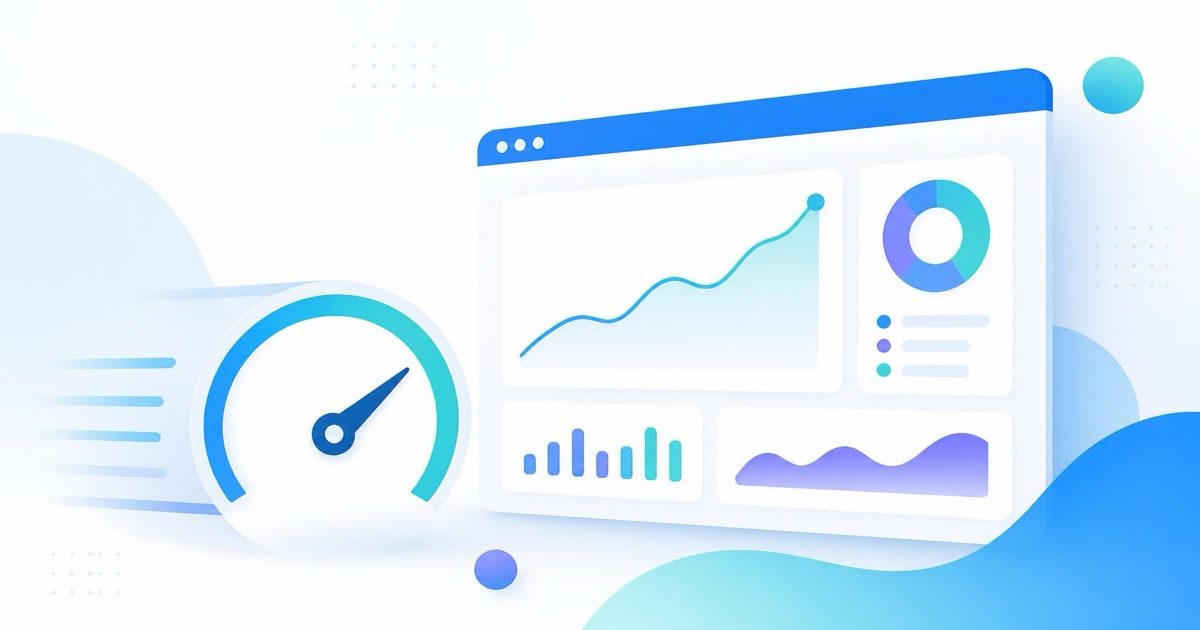
Webflow sites tend to be fast, clean, and visually polished, right up until you try to figure out what visitors actually do once they land on one. The platform's own analytics is limited to basic traffic counts, so most Webflow builders bolt on Google Analytics and call it done. That gets you numbers. It does not get you the reasons behind them, and it often comes with a page weight penalty that undercuts the very performance Webflow was chosen for in the first place.
Why Webflow analytics feels harder than it should
Webflow gives you a beautifully built site with almost no native insight into visitor behavior beyond raw page views. That pushes people toward a second tool, and the default choice is usually GA4. GA4 was not built with lightweight, design-forward sites in mind. Its tracking script and the cookie consent banner it typically requires add real weight to a page, and Webflow's own Lighthouse scores can drop noticeably once GA4 is wired in through custom code embeds.
There is also a workflow mismatch. Webflow's custom code panel is meant for small script snippets, not for managing tag configurations, event definitions, and consent logic. Every analytics change turns into a trip through Webflow's code embed, a republish, and a manual check that nothing broke.
What you actually lose by tracking pageviews alone
A pageview count tells you a visitor arrived. It says nothing about what happened next: whether they read the page, scrolled past the pricing section without stopping, or clicked a button that silently failed. For a Webflow site built around strong visual storytelling and a specific conversion path (a booking form, a waitlist signup, a contact request) that gap matters more than it does on a plain blog.
A visitor count tells you someone showed up. It never tells you whether they liked what they saw.
Session replay closes that gap directly. Instead of inferring behavior from aggregate numbers, you watch real visits: where the cursor moved, which section people lingered on, where scrolling stopped. On a design-heavy Webflow build, that is often the fastest way to catch a section that looks great in the Designer but reads confusingly to an actual visitor.
Adding analytics without undoing Webflow's speed advantage
The fix is not more tracking, it is lighter tracking. A single small script dropped into Webflow's site-wide custom code (Project Settings, before the closing body tag) can cover real-time visitor counts, click heatmaps, session replay, and conversion funnels without the multi-request overhead of a full GA4 and tag manager stack. Because it is one script rather than several, there is one place to manage it and one thing to remove if you ever need to.
This is where LeadFnF fits naturally into a Webflow setup. It installs as a single lightweight script, works without a cookie consent banner because it is privacy-first by design, and gives you real-time analytics, heatmaps, session replay, and funnels from one dashboard instead of stitching together several tools inside custom code embeds.
What to track first on a Webflow site
- Where visitors actually click, especially on hero sections and CTAs built with custom interactions
- How far people scroll on long-form pages before dropping off
- Whether form submissions and booking widgets are completing, not just loading
- Which pages people land on directly versus arrive at through internal navigation
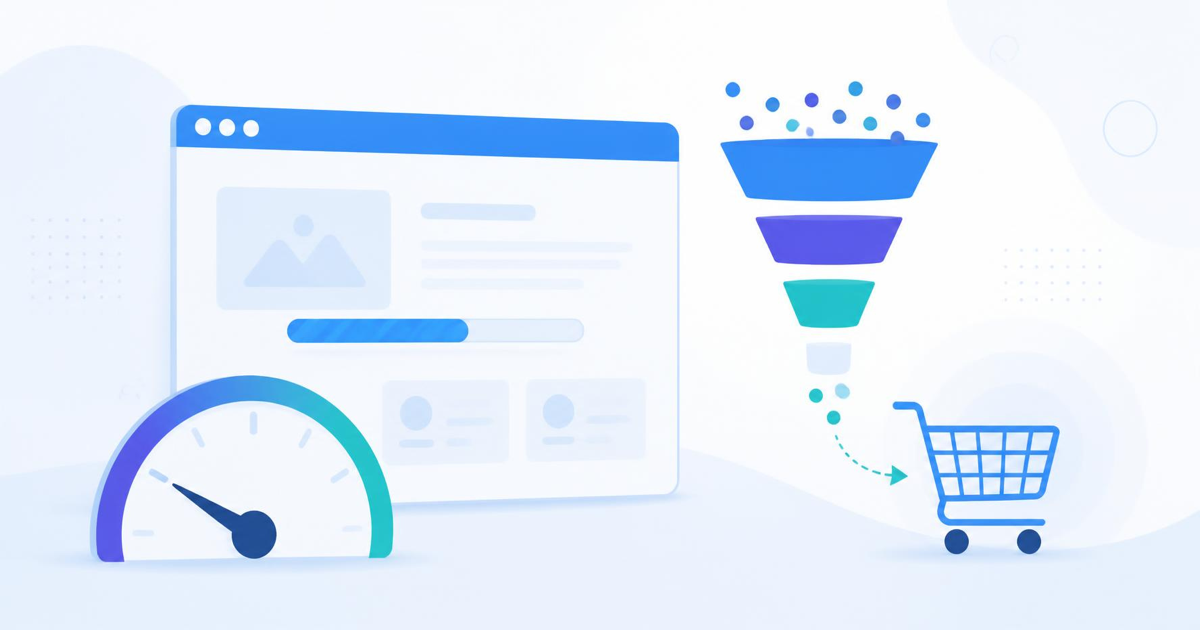
These four alone answer most of the "is this page working" questions that Webflow's built-in stats cannot touch. Once you can see the funnel from landing page to form submission, it becomes obvious which step is quietly losing people.
A practical rollout for an existing site
Add the script through Webflow's site-wide custom code, publish, then watch a handful of real sessions on your highest-traffic page before changing anything. Most of the time the first fix is not a redesign, it is a small friction point: a button that does not look clickable, a form field that throws a confusing error, or a section that gets scrolled past without a second look.
Webflow interactions and why they need extra attention
Webflow's interactions panel makes it easy to build hover states, scroll-triggered animations, and multi-step transitions without writing code. Those same interactions are also a common place for silent breakage. An animation that fires too slowly on a real connection, a hover state that never resolves on a touch device, or a scroll trigger that fails to fire on certain screen sizes can all make a page feel unresponsive in a way that a pageview count will never surface.
Click heatmaps catch this quickly. If a custom button built with an interaction is getting far fewer clicks than a plain, unstyled link on the same page, that is usually not a copy problem, it is the interaction not behaving the way it looks in the Designer preview. Session replay then shows you exactly what a real visitor saw when they tried to interact with it.
Bringing it together
Webflow handles the design side of a site well. Understanding what visitors do once they arrive still needs a proper analytics layer, and that layer does not have to come at the cost of the load speed Webflow was built to deliver. A single lightweight script, installed once in site-wide custom code, can give you the same clarity a heavier stack promises, without the extra requests or the consent banner.
LeadFnF was built for exactly this kind of site: one script, no cookie banner, real-time visitor data, heatmaps, session replay, and funnels in one place. Start a free 14 day trial and see what your Webflow site's visitors are actually doing.