Your analytics dashboard tells you that 68% of users leave your pricing page without clicking anything. That number is accurate. It is also completely useless on its own.
It tells you that something is wrong. It does not tell you what users were looking at before they left, whether they tried to click something and failed, how far they scrolled, whether the CTA was even visible on their device, or what happened in the five seconds before they bounced.
Session replay answers those questions. Not with more numbers — with a video-like playback of exactly what real users did on your site, showing every mouse movement, click, scroll, and hesitation.
This guide covers everything a SaaS founder needs to know about session replay: how it works, what it actually shows you, how to use it in the first 30 minutes, how to stay GDPR compliant, and what to look for in a tool. No jargon, no enterprise complexity.
Key Takeaways
- Session replay records real user sessions — mouse movements, clicks, scrolls, form interactions — and plays them back as a video-like reconstruction. It's the closest thing to sitting next to a user while they navigate your product (Quantum Metric, 2026).
- 88% of users are less likely to return after a bad experience — and the UX issues that cause most damage are invisible in standard analytics (Noibu, 2025).
- Fixing issues found through session replay typically leads to 15–25% conversion rate improvements on affected pages (Noibu, 2025).
- A support team cut ticket resolution time by 40% by watching session replays instead of asking users to explain problems in words (OpenReplay, 2025).
- Session replay uses rrweb (an open-source DOM recording library) to capture page structure changes and user events — not a screen-capture video, which would be enormous in file size.
- The most important filter to use: sort recordings by rage click count, highest first — this surfaces your most frustrated users immediately.
- LeadFnF includes session recordings, heatmaps, and full traffic analytics from one script at $19/month — no separate tool required.
Part 1: What Is Session Replay?
Session replay (also called session recording) is a tool that records real user sessions on your website or web app and lets you play them back like a video. You see the cursor moving across the screen, elements being clicked, pages being scrolled, forms being filled — exactly as the user experienced them, in real time sequence.
Think of it as a DVR for your website. Traditional analytics tools give you the scoreboard — how many visitors, what percentage converted, which pages had the most traffic. Session replay gives you the actual game footage. You see what really happened, not a statistical summary of it.
The key word is real. Not a simulated user test with a recruited participant who knows they're being observed. Not a heuristic review by a designer making assumptions. Real users, on your actual site, doing what they actually do when nobody is watching.
Session replay is the closest thing to sitting next to your customers while they use your product — without the awkward silence or side-eye. — Quantum Metric, 2026
What it records
A session replay captures:
- Mouse movements and cursor position — where users move their cursor across the page
- Clicks and taps — every element clicked, including non-interactive elements (revealing false affordances)
- Scroll depth and speed — how far users scroll and how fast they move through content
- Form interactions — which fields users focus on, how long they spend on each, where they abandon (with sensitive inputs masked)
- Page navigation — the sequence of pages visited within a session
- Browser and device context — viewport size, device type, OS, browser version
- Frustration signals — rage clicks, dead clicks, u-turns (navigating back immediately)
- JavaScript errors — some tools surface errors that occurred during the session
What it does not record
Session replay captures your page's structure and interactions — not screenshots or screen captures. Password fields, payment card inputs, and sensitive data are masked before capture. Most tools also let you manually exclude specific elements or entire pages.
Part 2: How Session Replay Works (Plain English)
Most session replay tools — including LeadFnF — are built on or inspired by rrweb, an open-source DOM recording library. Here's how it works without the technical jargon.
When you load a webpage, your browser constructs a Document Object Model (DOM) — a structured representation of every element on the page: the heading, the button, the image, the input field. Think of the DOM as a live blueprint of your page at any given moment.
When a user interacts with your page, the DOM changes. The cursor moves. An element is clicked and its state changes. A section expands. The user scrolls and the viewport shifts.
rrweb captures these DOM changes as a stream of events — not as video frames or screenshots, but as a compact structured record of what changed, when, and by how much. This is why session recordings are tiny in file size compared to actual screen recordings. Rather than storing 30 frames per second of pixel data, the tool stores a log of DOM mutations and user input events.
When you play back a session, the tool reconstructs the page in your browser using those stored DOM snapshots and replays the event stream on top of it — producing a video-like experience that shows exactly what the user saw and did, at the actual timing they did it.
Why this matters: because reconstruction from DOM events means the replay is your real page, with your real CSS and content — not a screenshot approximation. Interactive elements, hover states, and dynamic content all behave as they did in the original session.
Part 3: What You Actually See in a Session Recording
When you open a session recording in LeadFnF, here's what the experience looks like:
The player: A browser-like window — a desktop Chrome frame for desktop recordings, an iOS phone frame for mobile — showing your actual page. The session plays as if you're watching someone use their computer or phone.
The cursor: You see the mouse moving in real time. Hovering, pausing, changing direction. Cursor movement reveals hesitation, confusion, and the path users take before they make a decision.
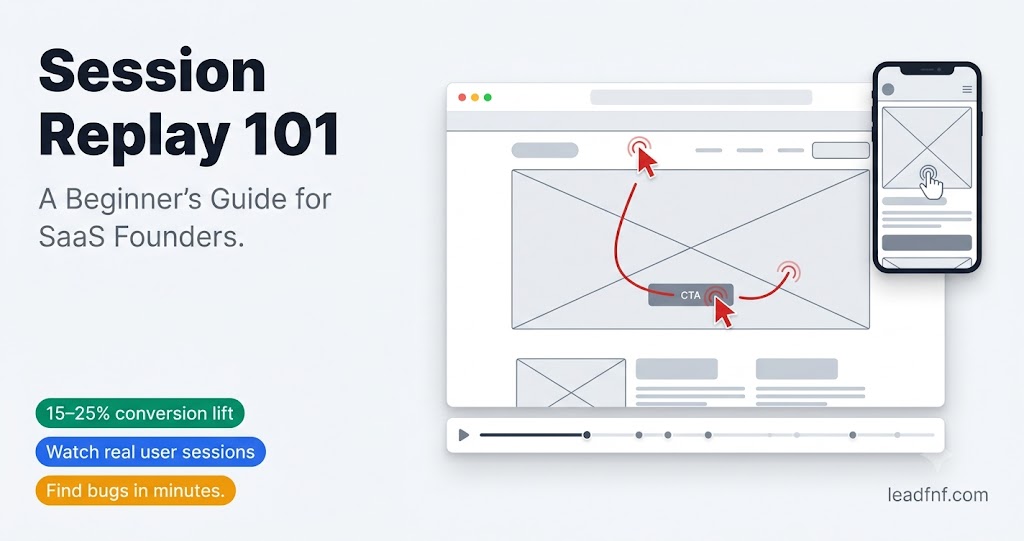
Click indicators: Clicks appear as visual ripple effects or dots, showing exactly where the user tapped or clicked. Rage clicks appear as a rapid cluster of markers in one spot.
The timeline: A horizontal scrubber at the bottom showing session duration, with markers for key events — page navigations, clicks, errors. You can jump to any point instantly.
Inactive time: Long pauses where nothing happened (user switched tabs, stepped away, got a phone call) are compressed or skippable so you're not watching blank screens.
Page navigation sidebar: Shows the sequence of pages visited during the session — so you can jump directly to the pricing page visit, the signup form attempt, or the moment the user hit a 404.
Playback speed: 1x, 1.5x, 2x, 4x — watch sessions quickly without missing key moments.
Session metadata: Alongside the player you see: total session duration, pages visited, clicks, scroll depth, device type, browser, country, referral source, and any custom events fired during the session.
Part 4: What Session Replay Reveals That Analytics Cannot
Analytics tools show you aggregate patterns across thousands of users. Session replay shows you individual reality. These are the five categories of insight that analytics will never surface — but session replay shows immediately.
1. Why users leave a specific page
Analytics tells you your pricing page has a 72% bounce rate. Session replay shows you what happened in those sessions. Did users scroll halfway and stop at a price that surprised them? Did they click a comparison table link that 404'd? Did they spend 45 seconds on the FAQ section and then leave without reading pricing? Each of these produces the same bounce rate number but requires a completely different fix.
2. Form abandonment at the field level
Form analytics show you that 60% of users who start your signup form don't complete it. Session replay shows you which specific field causes the drop-off — the industry dropdown that has no relevant option, the password field with requirements that only appear after a failed submission, the company name field that makes solo founders feel excluded.
A development team identified a browser-specific form submission bug by watching recordings that showed the exact conditions causing the failure. — OpenReplay, 2025
3. Bugs that users experience but never report
96% of users with a bad experience don't report it — they just leave (Noibu, 2025). Session replay surfaces these silently. A button that doesn't work on Firefox. A mobile layout that puts the CTA off-screen. A JavaScript error that fires on specific browser versions. Users experience these, close the tab, and you never know — unless you're watching recordings.
4. False affordances and UX confusion
When users repeatedly click on a non-interactive element — an image, a heading, a card — session replay captures it as a dead click pattern. A design team noticed users clicking something non-interactive, made it interactive, and task completion improved 30% (OpenReplay, 2025). That insight was invisible in analytics.
5. The moment users give up
Session replay shows you the exact frame where a user decides to leave. The cursor moves toward the browser's back button. Or they stop scrolling mid-page and the tab closes. Or they reach a paywall, pause for 12 seconds, and navigate away. Knowing the moment of exit is different from knowing the page of exit — it tells you what content or UI element was in front of them when they made the decision.
Part 5: The 4 Team Use Cases
Session replay serves different purposes depending on who's watching. Here's how each function uses it in practice.
SaaS founders
The most immediate use case for early-stage founders: understanding why new users aren't activating.
You launched two weeks ago. Your onboarding funnel drops 58% of users at step 3. Before session replay, your options are: guess what's wrong, survey users who already left, or hire a UX researcher. With session replay, you spend 30 minutes watching step-3 recordings and see that users are missing a "skip this step" option, hitting a confusing field label, or getting an error they can't decipher.
Best workflow: Filter recordings for users who reached step 3 of your onboarding flow and did not complete it. Watch 10–15 sessions. Write down what you see. The pattern will be obvious.
Product managers
PMs use session replay to prioritise the product backlog. Instead of debating which UX issue is most impactful, you watch recordings and see which friction points appear in 40% of sessions vs 3% of sessions. That's not a debate — it's a prioritisation signal.
PMs also use session replay to validate feature launches: after shipping a new flow, filter recordings for that flow and watch the first 50 sessions to check whether users are navigating it as intended.
Developers and QA engineers
Developers use session replay for bug reproduction. When a user reports "the checkout button doesn't work on my phone," a developer can filter recordings by that user's session, watch exactly what happened, see the error that fired, and reproduce it in minutes rather than hours of back-and-forth.
A support team cut ticket resolution time by 40% by watching session replays instead of asking customers to describe technical problems. — OpenReplay, 2025
Marketers
Marketers use session replay to understand paid traffic behaviour. If you're running a Google Ads campaign that's getting clicks but not converting, filter session recordings by traffic source: UTM source = google / medium = cpc. Watch what those users do when they land. Do they read the page, or do they immediately navigate to pricing? Does the landing page match what the ad promised? The answer is in the recordings.
Aligning a landing page headline with the email copy that drove traffic reduced bounce rate by 25% in one real-world test (OpenReplay, 2025).
Part 6: Your First 30 Minutes With Session Replay
You've just installed LeadFnF and your first recordings are coming in. Here's the most effective way to spend your first 30 minutes.
Minutes 1–5: Filter before you watch
Don't watch sessions at random — you'll waste time and miss the patterns. Start with two filters:
- Rage click = true — sort by rage click count, highest first. These are your most frustrated users. Watch these first.
- Page = your highest-priority conversion page (pricing, signup, checkout). Filter to sessions that included that page.
Minutes 6–20: Watch 8–10 recordings
Watch each at 2x speed. Keep a notepad (physical or digital) next to you. Every time you see something unexpected — a confused cursor, an unexpected click, an exit from a non-obvious point — write one sentence describing it.
Don't analyse as you watch. Just observe and note.
Minutes 21–25: Look for patterns
Read back your notes. Circle anything that appears more than twice. One user clicking a non-interactive element is noise. Three users clicking the same non-interactive element is signal.
Minutes 26–30: Write one hypothesis
"I think [specific user behaviour] is happening because [specific design or content reason]. If I [specific change], I expect [specific outcome]."
One hypothesis. One action. Ship the change. Come back in a week and watch new recordings. Did the behaviour change?
This is the entire loop. The value of session replay compounds over weeks and months as you systematically eliminate friction one pattern at a time.
Part 7: Session Replay and Privacy — What You Need to Know
Session replay captures real user interactions, which means it processes personal data and triggers GDPR obligations. Here's what to get right before you turn it on for EU visitors.
Automatic masking — non-negotiable
Before any data leaves the user's browser, sensitive inputs must be masked. In LeadFnF:
- Password fields, email inputs, phone numbers, and card fields are automatically masked at capture — showing only
***in the replay - Pages matching
/checkout,/payment,/account, and/settingshave all inputs masked automatically - Any element can be manually excluded using
data-lf-block(replaces with a grey placeholder) ordata-lf-mask(masks the value)
Consent for EU visitors
Session recordings capture session-level interaction data. For EU visitors, a consent mechanism is required before recording begins. LeadFnF's built-in consent banner — configurable from your dashboard — activates when session recording is enabled. Recording only starts after the user accepts. The banner is fully customisable: position (bottom bar, top bar, popup), text, accept/decline labels, and colours.
Privacy policy update
Add a paragraph disclosing that session recordings are collected, the purpose (UX improvement), the tool name, and the retention period. Name LeadFnF as a data processor. This takes 15 minutes and is required regardless of your legal basis.
For the complete GDPR guide, see Are Session Recordings GDPR Compliant? The Honest Answer.
Part 8: What to Look for in a Session Replay Tool
If you're evaluating options, these are the features that actually matter for SaaS founders.
Rage click and dead click detection — automatically flagged, sortable. Without this you're manually watching hundreds of sessions instead of filtering to the ones that matter.
Device frame rendering — desktop sessions in a browser frame, mobile sessions in a phone frame. This context matters — a user on a 375px screen has a completely different experience than the same user on a 1440px monitor.
Filtering by event, page, source, and device — the ability to filter recordings by what happened during the session (rage click, specific page visited, traffic source, error fired) is what makes session replay actionable at scale rather than just interesting.
Automatic input masking — must happen at capture, before data leaves the browser. Replay-level masking is insufficient.
Built-in consent banner — if you need it (EU traffic), having it built into the tool is significantly simpler than integrating a third-party CMP.
Linked to traffic analytics — the most valuable session replay insights come from context: which sessions came from paid campaigns? Which sessions are from users who later converted? Tools that show session recordings in the same dashboard as traffic data let you answer these questions without switching between tools.
LeadFnF covers all of the above. It's not the only option — but it's the only one starting at $19/month that includes session replay, heatmaps, traffic analytics, and a built-in GDPR consent banner from one script.
Frequently Asked Questions
What's the difference between session replay and screen recording?
Screen recording (like a Loom video) captures actual video frames of the screen — large files, no interaction metadata, no filtering. Session replay captures DOM events and user interactions, then reconstructs the session — compact files, full interaction metadata, filterable, searchable. Session replay is built for analysis at scale. Screen recording is built for sharing individual moments.
How many sessions should I watch before acting on what I see?
For a specific funnel step or page, watch a minimum of 10–15 sessions before identifying a pattern. Act on patterns you see in 3 or more sessions. One-off behaviour is noise; repeated behaviour across multiple sessions is signal.
Does session replay slow down my website?
Not significantly if implemented correctly. LeadFnF loads the recording engine (rrweb) asynchronously and only when session recording is enabled — it never blocks page load. The capture itself happens after the page is interactive, not during the critical render path.
Can I watch sessions from specific users?
Yes, if you pass a user identifier. In LeadFnF, you can associate a session with a user ID using custom event tracking: window.lf('event', 'identify', { userId: 'user_123' }). You can then filter recordings by that user ID to watch the specific sessions of a known user — useful for support investigations or understanding a churned customer's experience.
How long are session recordings stored?
This varies by tool and plan. Microsoft Clarity stores recordings for 30 days. Hotjar stores them for 365 days on paid plans. LeadFnF's retention policy is documented in your account settings — check leadfnf.com/pricing for current plan details.
Do I need to install a separate tool for session replay?
With most analytics tools, yes. GA4 has no session replay. Plausible has no session replay. If you use either of those, you need a separate tool like Hotjar or Microsoft Clarity — which means a second script, a second dashboard, and a second bill. LeadFnF includes session replay in the same script as your traffic analytics and heatmaps, starting at $19/month.
What's the first thing I should look for in my recordings?
Filter by rage clicks, sort by highest count. Watch those sessions first. Rage clicks are the loudest signal of user frustration and almost always point directly to a broken or confusing element you can fix.
The Bottom Line
Session replay is the fastest way to go from "I know something is wrong" to "I know exactly what to fix."
Your analytics tell you that users aren't converting. Your session recordings show you why — the broken button, the confusing form field, the CTA that's invisible on mobile, the pricing table that answers a question nobody had while leaving the real question unanswered.
The workflow is simple: filter for frustrated sessions, watch 10 recordings, look for patterns that appear 3 or more times, write one hypothesis, ship one fix. Repeat weekly. That compounding improvement cycle is the practical value of session replay.
Try LeadFnF free for 14 days — session recordings with rage click detection, heatmaps, and full traffic analytics from one script. No credit card required. Your first recording appears within 10 minutes of installing the script.